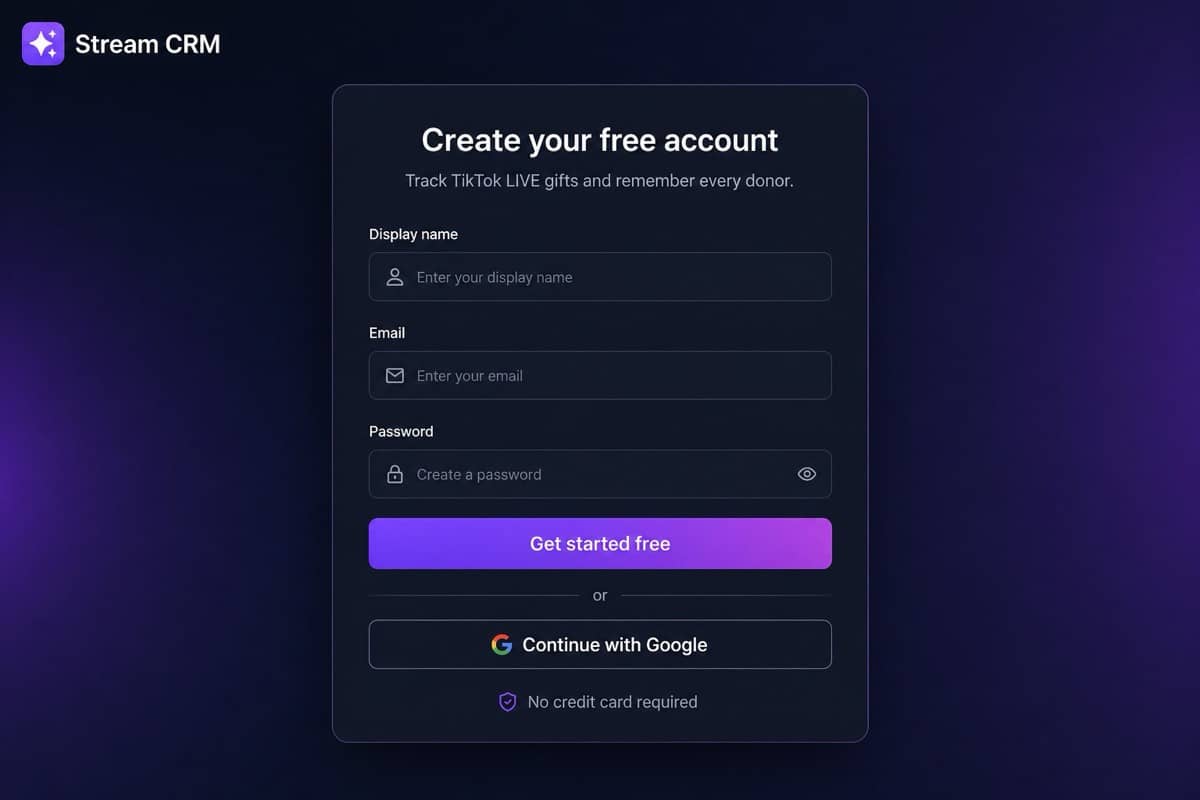
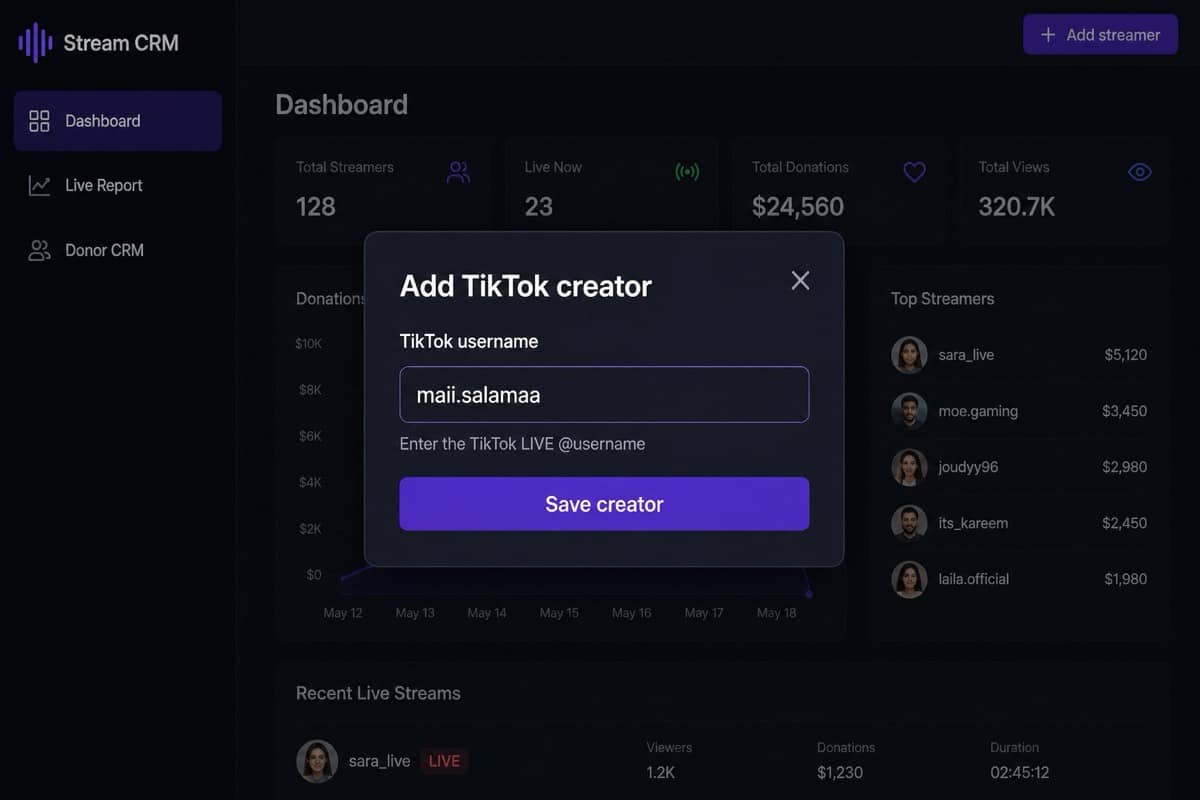
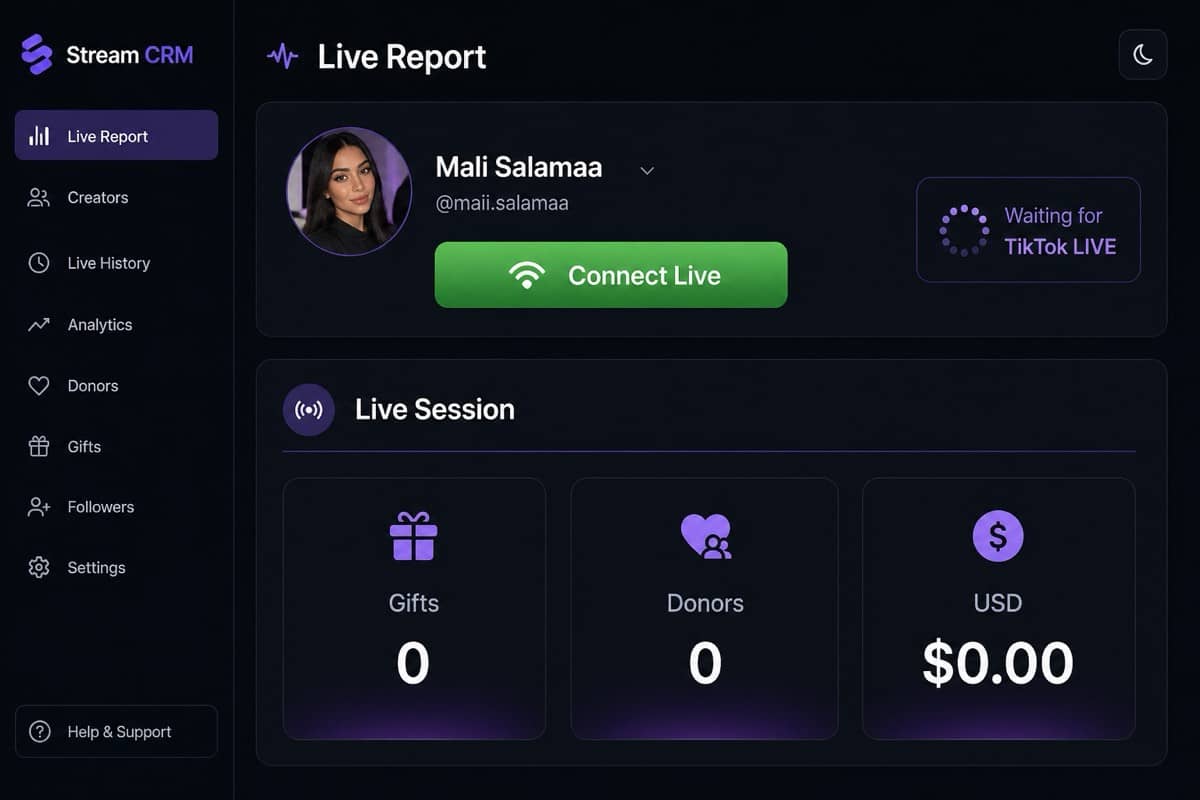
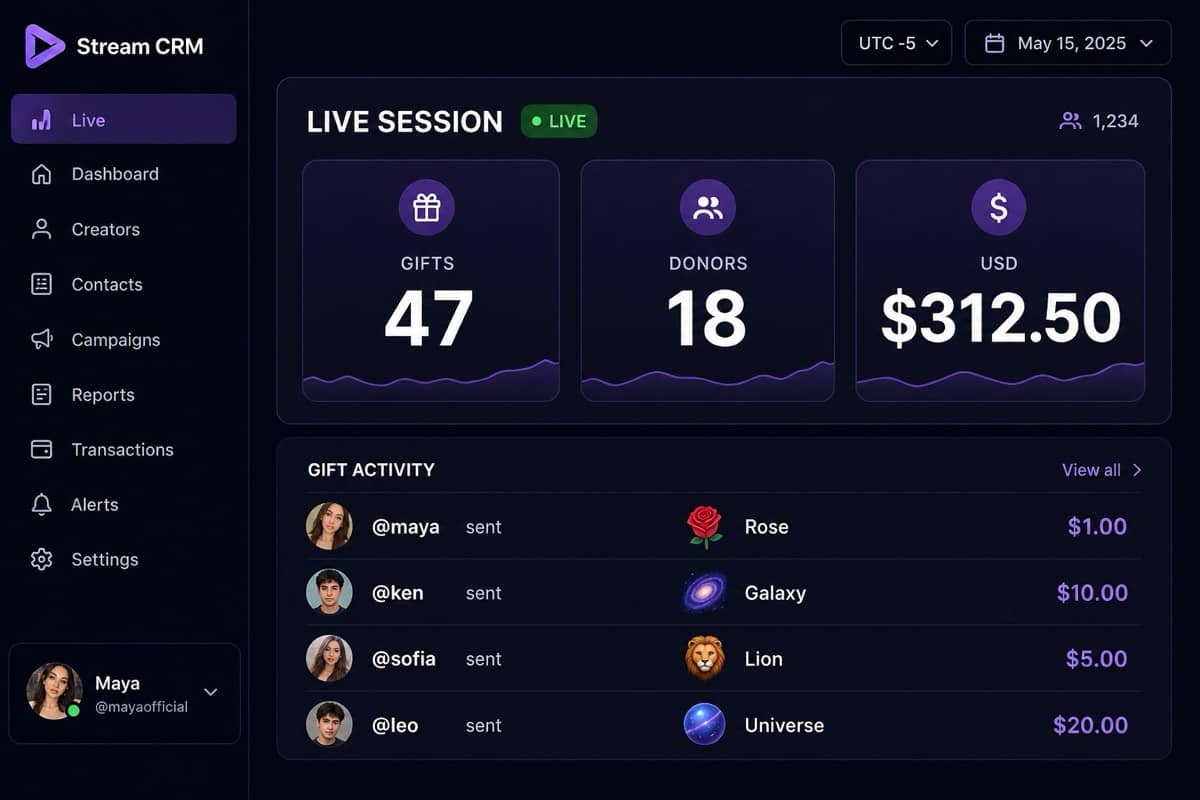
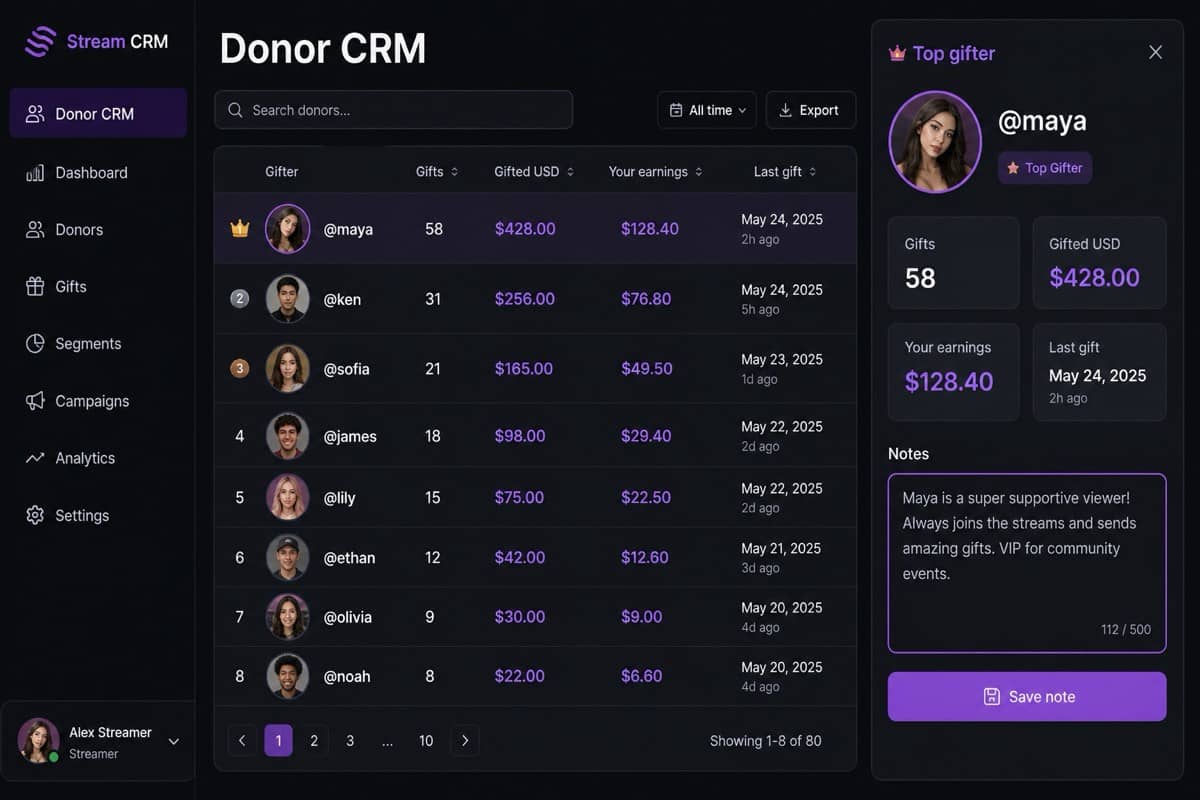
Step-by-step Stream CRM user guide: create an account, add a TikTok @username, Connect Live, watch gifts and USD, then save gifters in Donor CRM. Mobile-friendly tutorials and FAQs.
3.When the allowance is used up, active connections stop automatically.
4.Usage resets at midnight UTC.
Phone during a LIVE
1.streamcrm.app is mobile responsive — open Live from Safari or Chrome on your phone.
2.Use the header to pick a creator and tap Connect Live.
3.The gift feed and session totals sit on one screen so you can glance while broadcasting.
4.Buttons are at least 44px tall so Connect Live is easy to tap during a stream.
Reports, gift gallery, leaderboard
1.Reports: filter today / week / month and see top TikTok gifters.
2.Gift gallery: gifts this creator received, with diamond values.
3.Leaderboard: rank this creator’s gifters so you know who to shout out next LIVE.
4.Prep notes: keep talking points beside the dashboard while you are on camera.
Frequently asked questions
How do I track TikTok LIVE gifts in real time?
Create a free Stream CRM account, add the TikTok @username you want to track, wait until that creator is actually live on TikTok, then click Connect Live. Gifts, gifters, diamonds, and estimated USD appear on Live as they land.
Does the TikTok creator need to be live first?
Yes. Stream CRM connects to an active TikTok LIVE broadcast. If the room is offline, Connect Live returns “not live.” Start the TikTok LIVE (phone, camera, or LIVE Studio), then connect.
Do I need TikTok LIVE Studio or a special creator account?
No. Any public TikTok LIVE can be tracked with the @username. Stream CRM works whether the creator goes live from the TikTok app or TikTok LIVE Studio. You do not give Stream CRM your TikTok password.
What TikTok gifts does Stream CRM record?
Every gift event received while you are connected: gift name, repeat count, diamond value, estimated gifter spend (Gifted), approximate creator take-home (Your earnings), and the gifter’s TikTok handle. Contacts are created automatically in Donor CRM.
How is Gifted different from Your earnings?
Gifted is the estimated coin spend the viewer paid. Your earnings is about 50% after TikTok’s platform cut — a planning number, not a tax document. Always use TikTok’s official statements for payouts.
Is Stream CRM affiliated with TikTok?
No. Stream CRM is an independent third-party tool for creators, managers, and agencies. It is not affiliated with, endorsed by, or sponsored by TikTok or ByteDance.
Can agencies track more than one TikTok creator?
Yes. Every plan lets you save unlimited creator profiles. Your plan only limits how many LIVE rooms you can connect at once and how many tracking hours you use per UTC day.
Is there a free TikTok gift tracker?
Yes. The Free plan includes one concurrent LIVE connection, up to 2 hours of tracking per day, unlimited saved creators, Donor CRM, and reports. No credit card is required to start.
Does tracking work if I close the browser?
Once Connect Live succeeds, tracking runs on Stream CRM’s servers — you can close the tab. Gold and Agency plans can also auto-connect when a saved creator goes live (Continuous track).
Can I use Stream CRM on my phone during a TikTok LIVE?
Yes. The site is mobile responsive. Open Live from your phone while you broadcast — the gift feed and Connect Live button are built for a small screen.
Why did my stream disconnect automatically?
You may have hit the daily tracking-hour limit, the concurrent LIVE cap, or the TikTok room ended. Check the usage pill in the streamer bar. Usage resets at midnight UTC.
How do I upgrade or cancel?
Dashboard → Billing. Start a paid plan through Stripe, or open Manage billing to cancel, update the card, or download invoices. Cancel subscriptions before deleting your account.
How do I delete my Stream CRM account?
Visit streamcrm.app/delete-account while signed in, confirm your email, and submit. Cancel billing first if you have a paid plan.
Still need help?
Billing questions, bugs, and setup help — we reply to TikTok creators and agencies.